

How to Let Claude Code & Codex Upload Files to R2/S3 Without Giving Them Plaintext Keys
Keep R2 and S3 keys inside macOS Keychain while giving Claude Code, Codex, and Cursor a JSON CLI with --dry-run guardrails and an official Agent Skill.
Once you start shipping real work with Claude Code, Codex, or Cursor, you quickly hit a recurring friction point: your agent generates a build archive, a release DMG, or a set of product screenshots — and now you want it uploaded to Cloudflare R2 or Amazon S3 with a usable link back in the chat.
The usual workaround is ugly: drop AWS_ACCESS_KEY_ID and AWS_SECRET_ACCESS_KEY into a .env file, hope nothing prints them into a transcript or commits them, and pray the agent does not run a destructive aws s3 rm --recursive on the wrong prefix.
There is a much safer pattern on macOS: keep storage credentials inside macOS Keychain, expose a structured JSON CLI with --dry-run guardrails, and hand your coding agent an official Skill that knows how to preview changes before writing or deleting anything.
Why raw .env keys + generic S3 CLIs are risky for AI agents
When an AI coding agent operates your cloud storage through standard environment variables and general-purpose CLIs, three risks show up immediately:
- Plaintext secret exposure: Keys sitting in
.envfiles, shell scripts, or~/.aws/credentialscan easily leak into context windows, terminal logs, or accidental git commits. - Unstructured text output: Parsing human-formatted
lsor upload logs makes agents brittle and prone to hallucinating paths or missing partial batch failures. - High blast radius on typos: A single misplaced slash in a recursive delete command can wipe far more than intended.
How Blob0 separates credentials from the agent
Blob0 ships a single macOS binary that doubles as both a desktop storage client and a headless CLI. When an AI agent runs blob0 ...:
- Credentials stay in macOS Keychain. You connect your Cloudflare R2 (via bucket-scoped OAuth or manual keys) or S3-compatible bucket once in the desktop app. The CLI reuses those saved profiles — the agent never reads or prints access keys (
blob0 profileslists profile names and buckets, never secrets). - Structured JSON everywhere. Read and batch write commands output machine-readable JSON on
stdout(with per-item status), while command-level errors print structured JSON tostderrwith distinct exit codes (0success,2usage,3–9specific error kinds,10partial batch failure). - Mandatory preview & safety guards.
put,get,mv,cp, andrmsupport--dry-run(listing every planned item without mutating storage) and--no-clobber(refusing to overwrite existing objects). Recursive deletion of the bucket root is blocked unless--yes-really-delete-everythingis explicitly passed.
| Concern | .env + raw S3 CLI | Blob0 CLI + Official Skill |
|---|---|---|
| Where keys live | Plaintext .env or ~/.aws/credentials | macOS Keychain (never printed to stdout) |
| Scope control | Often broad account keys | Supports bucket-scoped Cloudflare R2 OAuth tokens |
| Agent readability | Text tables; easy to misparse partial errors | Structured JSON stdout/stderr + exit codes 0–10 |
| Safe write/delete | Easy to skip preview flags | Skill instructs --dry-run first + root-delete guard |
Step 1: Connect a bucket once in Blob0
Open Blob0 and connect the bucket you want your agent to work with. If you use Cloudflare R2, Sign in with Cloudflare creates an API token scoped to that single bucket and stores the resulting S3 credential in macOS Keychain.
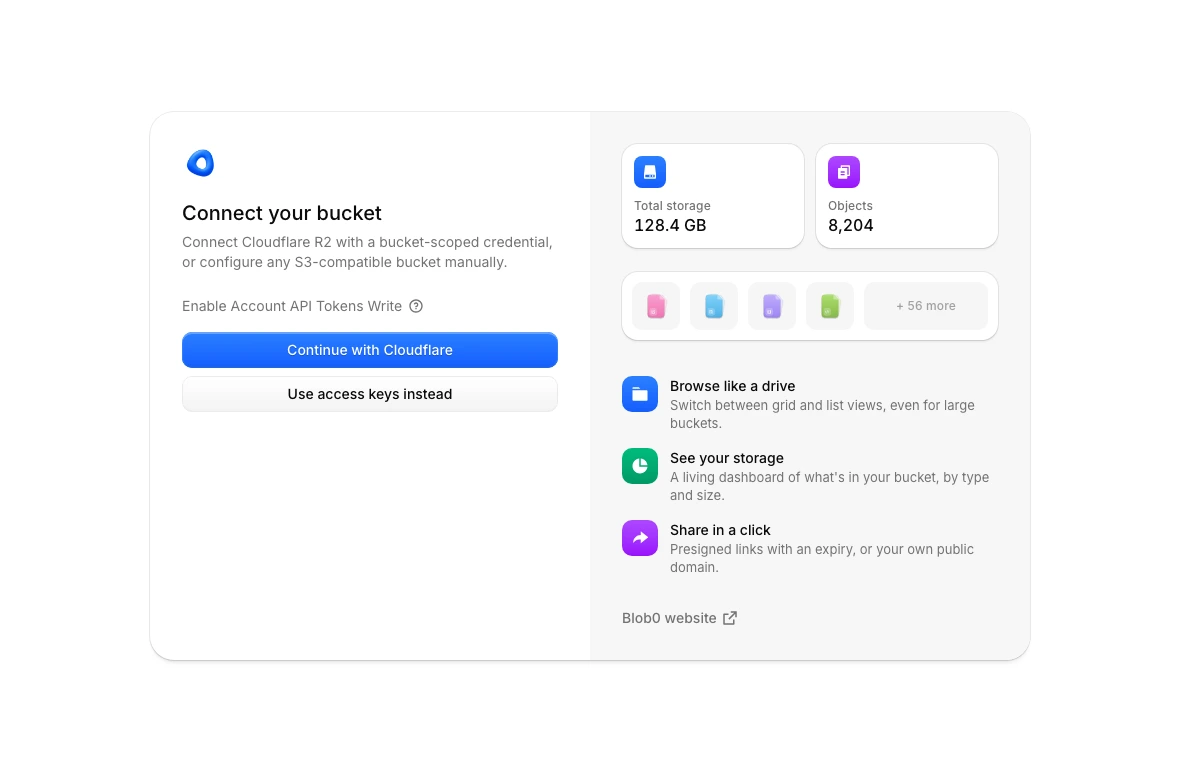
You can stay on the free plan for one saved connection, or unlock unlimited profiles with a one-time license on Blob0 pricing.
Step 2: Install the official Blob0 Skill in one click
Open Settings → CLI & Skills inside Blob0:
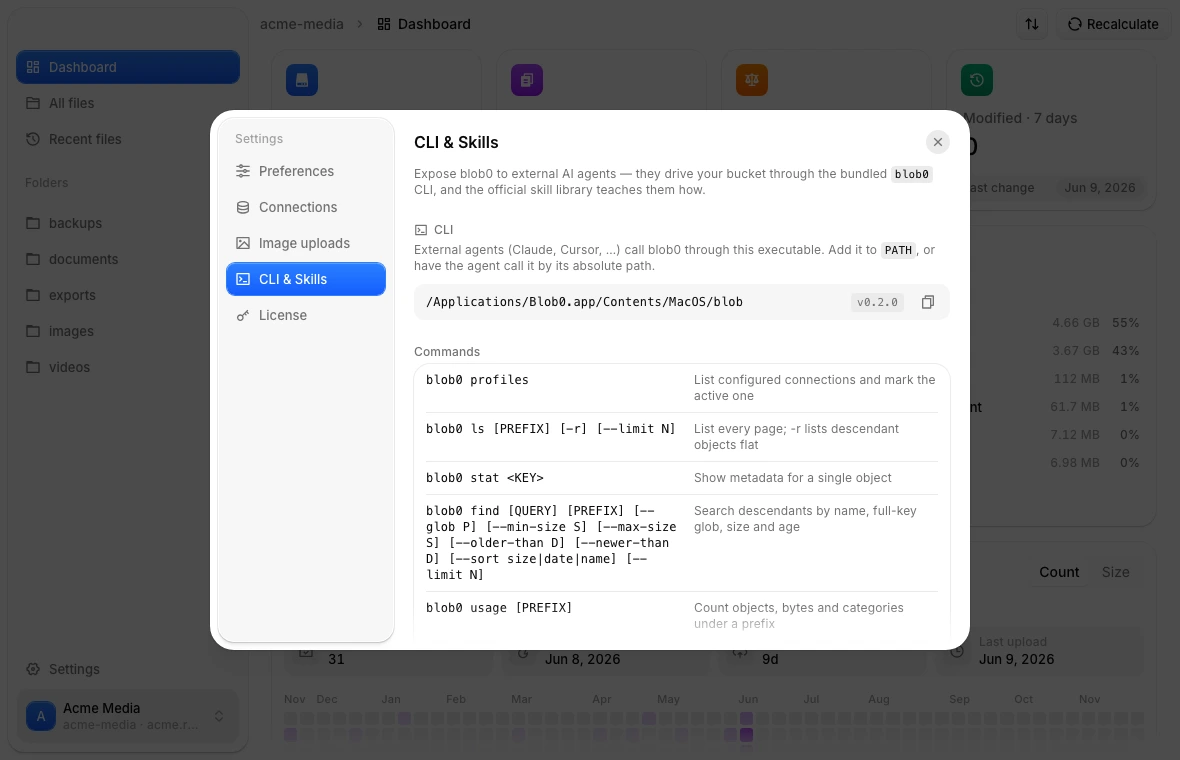
Scroll to Official skill library:
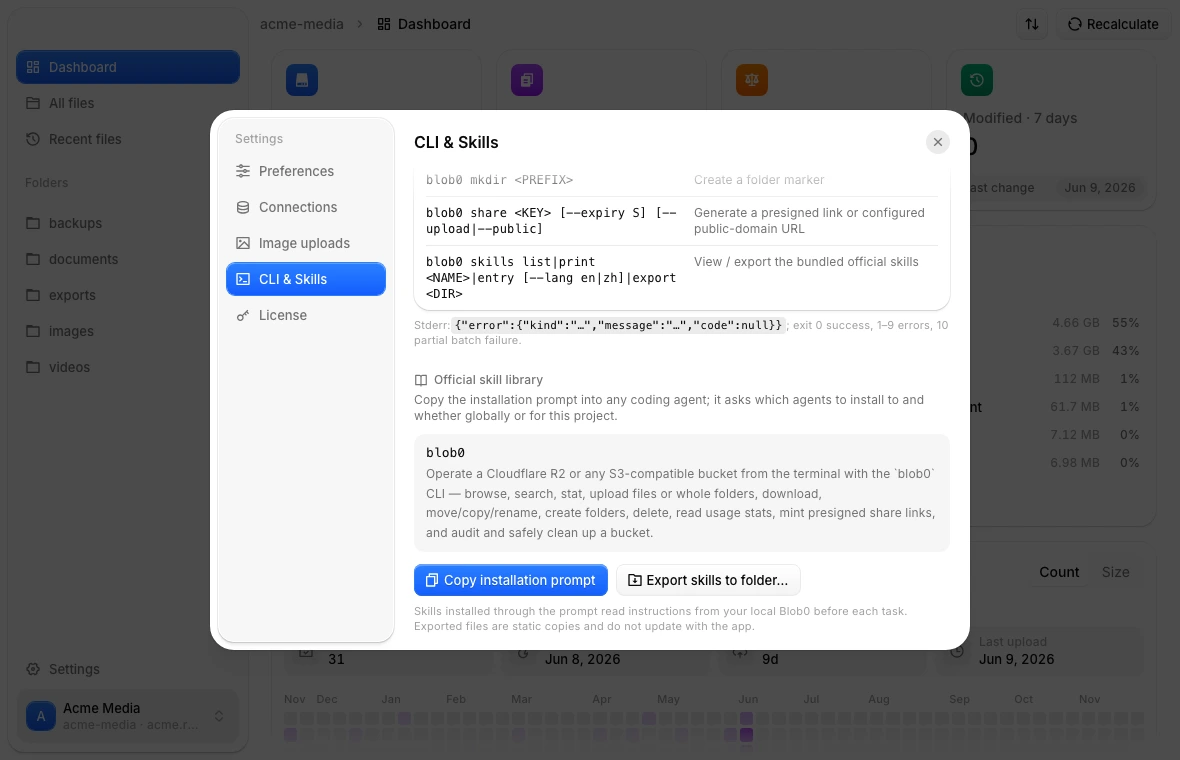
You have two ways to teach your coding agent how to drive Blob0 safely:
- Fastest (recommended): Click Copy installation prompt and paste it into Claude Code, Codex, or Cursor. The prompt detects which coding agents are installed on your Mac, asks whether to install globally or per-project, runs
blob0 skills entry, and writesblob0/SKILL.mdinto the selected agent's skill directory (asking before overwriting an existing file). - Manual export: Click Export skills to folder… or run the CLI directly:
# Example using Claude Code's global skills directory
blob0 skills export ~/.claude/skills
Because the entry SKILL.md instructs the agent to run skills print blob0 before a storage task, your agent always follows the exact command syntax and safety rules bundled with your installed version of Blob0.
Three practical recipes you can run today
All examples below use the active profile (or pass --profile NAME before the subcommand to target a specific bucket).
Recipe 1: Upload a release archive and mint a 24-hour download link
Great when your agent finishes building a .dmg, .zip, or preview artifact and you want to hand a private download link to a teammate:
# 1. Preview what will be uploaded (no writes yet)
blob0 put ./dist/app-v1.4.zip releases/ --dry-run

# 2. Upload without overwriting an existing object
blob0 put ./dist/app-v1.4.zip releases/ --no-clobber

# 3. Create a 24-hour presigned download link (JSON output)
blob0 share releases/app-v1.4.zip --expiry 86400
A --dry-run returns structured JSON so the agent can verify destination keys before executing:
{
  "ok": true,
  "dryRun": true,
  "total": 1,
  "succeeded": 0,
  "skipped": 0,
  "failed": 0,
  "bytes": 0,
  "items": [
    {
      "src": "./dist/app-v1.4.zip",
      "dst": "releases/app-v1.4.zip",
      "size": 14829120,
      "status": "planned"
    }
  ]
}
Recipe 2: Upload blog or docs images and get public CDN URLs
If your profile has a custom public domain configured (and optional image compression enabled in Settings → Image uploads), blob0 put automatically uses your saved compression preference (pass --no-compress when you need untouched bytes):
blob0 put -r ./public/shots blog/2026-11/ --no-clobber
blob0 share blog/2026-11/shots/hero.webp --public
Recipe 3: Audit old build artifacts and preview cleanup safely
Instead of guessing what is eating storage inside an archive bucket, let the agent inspect age and size first:
# Find objects older than 90 days under exports/, sorted by date
blob0 --profile archive find "" exports/ --older-than 90d --sort date

# Check total size under a prefix
blob0 --profile archive usage exports/tmp/

# Always dry-run before deleting a prefix
blob0 --profile archive rm exports/tmp/ -r --dry-run
Only after you review the planned items does the agent run the delete command without --dry-run.
Honest boundaries: CLI + Skill vs MCP, s5cmd, and rclone
- Why CLI + Skill instead of a hosted MCP server? Everything stays local on your Mac using the binary you already installed — no extra background server, no cloud proxy touching your keys, and any agent that can run shell commands works out of the box.
- When to keep
s5cmdorrclone: Blob0's CLI is designed for everyday bucket operations, sharing, auditing, and agent workflows that share your desktop profiles. It does not try to replacerclone's cross-cloud sync/mount engine ors5cmd's massive server-side batch pipelines. - Desktop refresh note: After a separate CLI process modifies objects, refresh or reopen the folder in the Blob0 desktop window to see the updated listing.
Related guides and next steps
- Full Blob0 CLI & Agent Skill reference — complete command cheat sheet, exit codes, and AWS CLI S3 mapping.
- Download Blob0 for macOS — free for one connection; one-time license for multiple buckets.
- Zero-Subscription Image Host for Obsidian & Blogging on Mac — connect Obsidian and Typora to your R2 bucket.
- Send Large Files to Clients with Expiring Links — deliver private deliverables with time-limited URLs.