

Connect Backblaze B2 with Blob0
Connect Blob0 to an existing Backblaze B2 bucket through its S3-compatible API. Match the bucket region and endpoint, use a manually created application key, and check its capabilities.
Use this guide for an existing Backblaze B2 Cloud Storage bucket. Blob0 connects through B2’s S3-compatible API; it is an object client, not Backblaze Computer Backup.
Download and installation guideBefore you connect
- Have an existing B2 bucket and its bucket-specific endpoint and Region. Get an application-key pair scoped to that bucket and the actions you need; the key must be allowed to list the bucket root for Test connection.
- Leave the optional Public / custom domain field blank unless a direct-link domain has already been configured. See Provider configuration notes below for B2 key mapping and capability details.
Fill in the Blob0 connection form
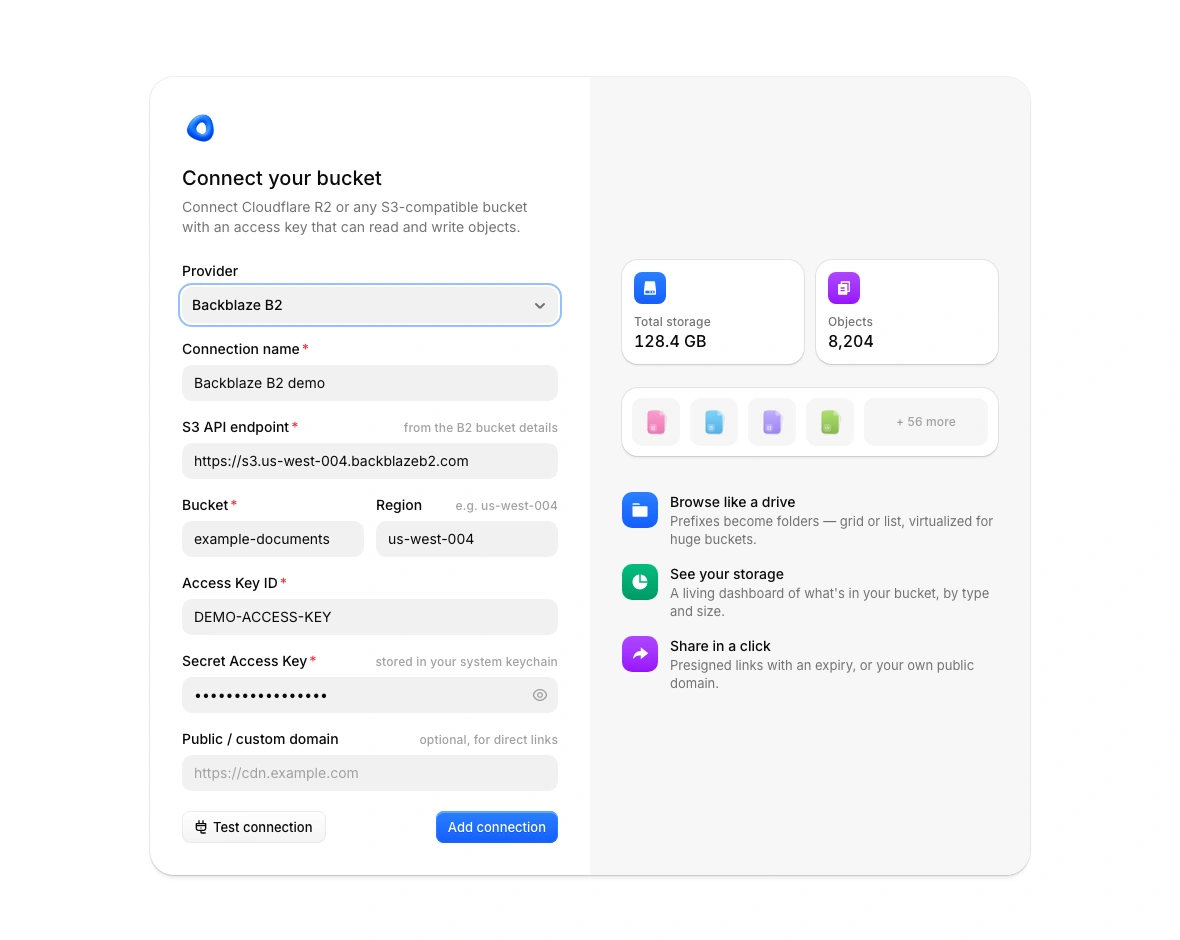
On first launch, use the connection form. To add another bucket later, open Settings → Connections → Add connection. Choose Backblaze B2 under Provider, then enter the bucket-specific endpoint, region and application-key pair.
| App field | What to enter |
|---|---|
| Provider | Backblaze B2 |
| Connection name | A local label, such as B2 archive. It does not rename the bucket. |
| S3 API endpoint | The regional endpoint in the bucket details. Example: https://s3.us-west-004.backblazeb2.com. |
| Bucket | The exact existing B2 bucket name, without a URL or folder prefix. |
| Region | The bucket region, such as us-west-004 for the endpoint example above. |
| Access Key ID | The application key ID (keyID), not the master key ID. |
| Secret Access Key | The matching application key (applicationKey), not the master app key. |
| Public / custom domain | Optional. Leave blank for private access; it does not authenticate the S3 connection. |
Test and save the connection
Test connection
Select Test connection. Blob0 lists the selected bucket at its root and may show 0 items for an empty bucket. A successful result confirms only that this listing request succeeded; it does not prove access to object contents or permission to upload, overwrite, or delete.
The B2 connection test lists the selected bucket root with an empty prefix. If the application key is restricted to a file-name prefix, B2 may reject this listing even when objects under that prefix are accessible.
Add connection
After the test succeeds, select Add connection to save the profile and connect. Blob0 stores access keys in the macOS Keychain; the profile keeps non-sensitive connection details.
Optional: verify an authorized transfer
Only if the bucket owner has authorized write testing, upload a tiny temporary file under a new test name, download it and compare its contents, then delete that exact test object. Check the bucket policy and retention rules first; never use an existing object as the test file.
Troubleshooting
- AccessDenied
- Use a manually created application key, not the master app key. Confirm it has listFiles access for the bucket root; a file-name prefix restriction can conflict with the empty-prefix test.
- SignatureDoesNotMatch
- Check the pair mapping: keyID goes in Access Key ID and applicationKey goes in Secret Access Key. Then verify the bucket’s regional endpoint and Region.
- NoSuchBucket or 404
- Check the exact bucket name and use the regional endpoint from that bucket’s details. Do not carry an endpoint over from a bucket in another region.
- Listing works but an operation is denied
- Grant only the B2 capabilities needed: listFiles for listing, readFiles for reading and downloads, and writeFiles for uploads. Copy operations used by rename or move can require both readFiles and writeFiles.
- Delete or historical versions
- B2 S3 deletion by object name adds a delete marker. Blob0 does not select a version ID; manage historical versions and lifecycle rules in Backblaze tools.