

How to Send Large Files to Clients with Expiring Links (Without WeTransfer or Dropbox Subscriptions)
Deliver multi-gigabyte videos, archives, and confidential PDFs from a private Cloudflare R2 or S3 bucket using temporary presigned links that expire in 15 minutes to 7 days.
Sending a 1.8 GB product demo video, a design handoff archive, or a confidential PDF to a client should not require another monthly SaaS subscription. Yet most teams still bounce between WeTransfer upload caps, Dropbox/Google Drive storage warnings, and "who forgot to revoke that public folder link?" anxiety.
If you already use Cloudflare R2, Amazon S3, Backblaze B2, or any S3-compatible bucket, you already own a far cheaper, faster delivery layer. The trick is using temporary presigned download links so your bucket stays completely private while your client gets a direct HTTPS download link that stops working on schedule.
This guide explains how private file delivery with presigned URLs works, how it compares to traditional file-transfer tools, and how to upload, share, and clean up client deliverables from your Mac in under a minute.
Why S3/R2 presigned links beat file-transfer subscriptions
When you send a client file through a hosted transfer service, you are paying for two things: temporary storage and a wrapper around an HTTPS download link. With your own object storage bucket:
| What you care about | Typical transfer SaaS / cloud drive | Your own R2 or S3 bucket + Blob0 |
|---|---|---|
| Monthly recurring rent | Ongoing subscription once you exceed small free caps | Pay your storage provider only (R2 has 10 GB free + zero egress) |
| Large file reliability | Browser uploads stall if you close a tab | Desktop multipart upload with live progress and cancelable transfers |
| Bucket privacy | Often relies on "anyone with link" folder sharing | Bucket stays 100% private; each link authorizes one object only |
| Expiration | Often locked to paid tiers | Choose 15 min, 1 hour, 24 hours, or 7 days per link |
| Cleanup & cost visibility | Easy to lose track of forgotten archives | Visual storage dashboard highlights your largest objects immediately |
A GET presigned URL signs a single read request using your local credentials. Anyone with that URL can download that specific file until the signature expires — without creating an account, without installing an app, and without making the rest of your bucket public.
Step 1: Upload large deliverables reliably from your Mac
Dragging a 2 GB video or ZIP into a web dashboard is fragile. In Blob0, uploads run natively in Rust over multipart S3 requests so large files stream cleanly off disk without hogging browser memory.
You can upload in whichever way fits your habit:
- Drag and drop files or folders straight into a client prefix (for example,
deliverables/acme-q4/). - Copy in Finder and press
⌘Vinside Blob0's Files view (or choose Upload → Preview clipboard files… to review and rename files before uploading). - Click Upload (
⌘U) to pick files from Finder.
Every upload appears in the live Transfers dock with real-time progress and per-item cancellation.
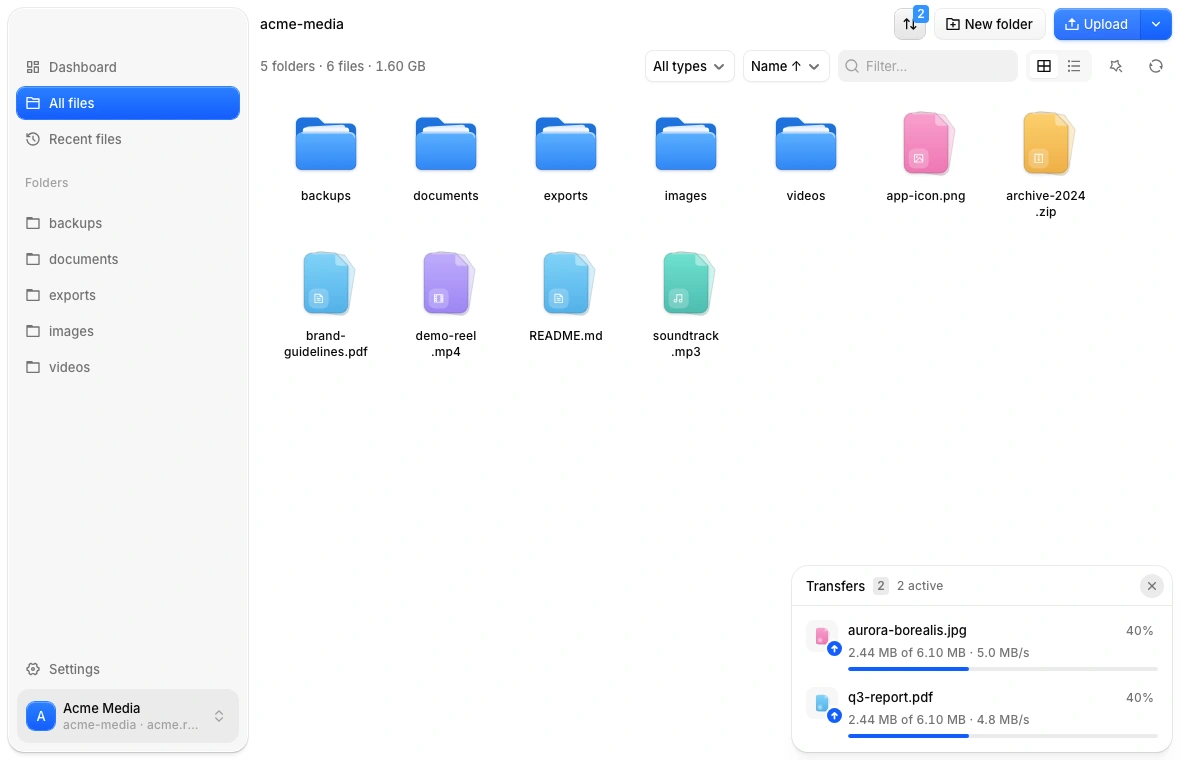
Collision safety: Clipboard uploads use conditional writes and collision-safe suffixes so you never accidentally overwrite an earlier deliverable with the same filename.
Step 2: Create a time-limited link with Share…
Once the upload finishes, you do not need to touch bucket policies or open the AWS/Cloudflare web console:
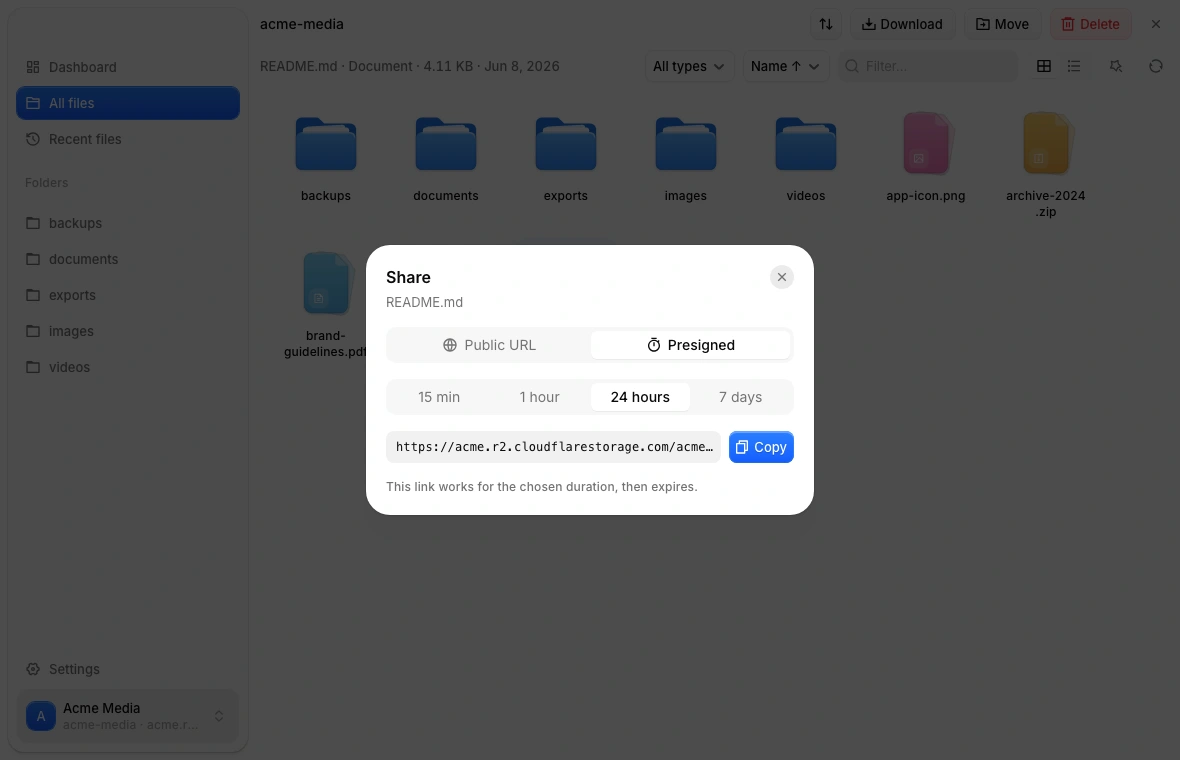
- Right-click the file you want to send and choose Share….
- Select Presigned (if your profile has no public domain configured, Presigned is already selected by default).
- Pick the expiration window that matches the handoff: 15 min, 1 hour, 24 hours, or 7 days.
- Click Copy and paste the link into Slack, email, or your project tracker.
Know the difference between Share… and quick Copy link
- Use
Share…whenever you want to choose Presigned explicitly or pick a specific duration (15 min / 1 hour / 24 hours / 7 days). - Quick shortcuts (the file menu's Copy link and the Preview toolbar's Share icon) copy your profile's Public URL first if one is configured, and otherwise fall back to a 24-hour presigned link. For private client buckets with no public domain configured, that makes one-click 24-hour sharing instant.
Step 3: Clean up forgotten archives with the storage dashboard
The hidden cost of client file delivery is forgetting 40 GB of old video exports inside a bucket six months later.
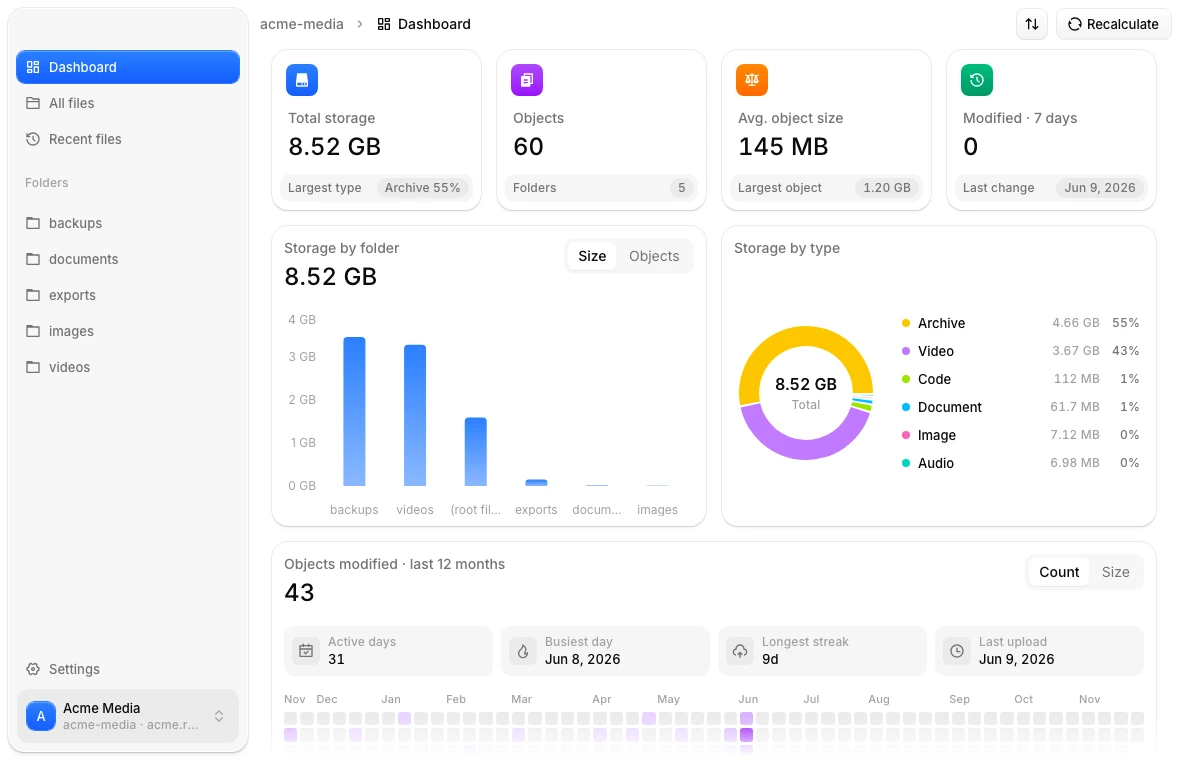
Open Blob0's Dashboard view to see a radial breakdown of storage by file type (video, archives, images, documents) alongside your largest objects and recent activity. Finding and deleting expired handoffs takes seconds instead of hunting through nested prefixes in a web console.
Four important boundaries to keep in mind
Presigned links are simple and reliable when you understand what they do — and what they do not do:
- It is a read-only download link, not an upload portal. A GET presigned link lets your client read or download one file. If you need a branded web upload form where clients submit files to you, Blob0 does not host a web client portal.
- Treat the URL like a bearer key. Anyone who receives the link can download that object while the signature is valid. Send it only to the intended recipient; if it leaks, revoking the signing credentials or removing/moving the object stops access immediately.
- 7 days is an upper limit, not a guarantee. If the signing token expires earlier, permissions are revoked, or the object is deleted, the link stops working sooner.
- Cloudflare R2 presigned URLs use the S3 API endpoint. R2 presigned links cannot be rewritten to an
r2.devor custom CDN hostname — share the exact URL Blob0 generates. (For full provider rules and troubleshooting, read our S3 Presigned URLs guide.)
Need permanent public links instead?
Presigned URLs are built for private, temporary delivery. If you are publishing blog illustrations or Obsidian note images that need permanent, clean HTTPS URLs on your own domain, use a separate public bucket instead — see our zero-subscription Obsidian & blogging image host guide.
Related guides and next steps
- Download Blob0 for macOS — free for one storage connection, one-time purchase for multiple buckets (no subscription).
- Zero-Subscription Image Host for Obsidian & Blogging on Mac — auto-compress and paste images into Markdown.
- Let Claude Code & Codex Upload Files Without Plaintext Keys — generate presigned links right from the CLI or an AI agent.
- S3 Presigned URLs technical reference — complete expiry rules and
AccessDeniedtroubleshooting.