

Connect MinIO with Blob0
Connect Blob0 on Mac to an existing MinIO bucket. Get the S3 API endpoint, signing region and restricted keys from your administrator, then test listing access and save the connection.
Use this guide when your MinIO server and bucket already exist. Blob0 connects to the S3 API for object work; it does not install or administer the server.
Download and installation guideBefore you connect
- Have an existing bucket and a key pair issued by the MinIO administrator, scoped to that bucket and the actions you need. The key must be allowed to list the bucket root for Test connection.
- Get the endpoint and signing Region for this deployment from its administrator. Leave the optional Public / custom domain field blank unless a direct-link domain has already been configured.
Fill in the Blob0 connection form
On first launch, use the connection form. To add another bucket later, open Settings → Connections → Add connection. Choose MinIO under Provider, then replace the examples below with the values supplied for your deployment. Do not include the bucket name in the endpoint.
| App field | What to enter |
|---|---|
| Provider | MinIO |
| Connection name | A local label, such as Team MinIO. It does not rename the bucket. |
| S3 API endpoint | https://storage.example.com (example only; replace with the reachable S3 API URL from your administrator). Do not use the Console URL. |
| Bucket | example-documents (example only; replace with the exact existing bucket name). Do not enter a URL or folder prefix. |
| Region | The server signing Region. The MinIO preset starts at us-east-1; confirm the value with the operator. |
| Access Key ID | The bucket-scoped key ID issued by the MinIO administrator. |
| Secret Access Key | The secret paired with that key ID. Enter it only in Blob0; it is stored in macOS Keychain. |
| Public / custom domain | Optional. Leave blank for a private bucket; this field does not affect API authentication. |
| Use path-style URLs | The MinIO preset starts with path-style enabled. Keep it unless the administrator says this endpoint requires virtual-hosted addressing. |
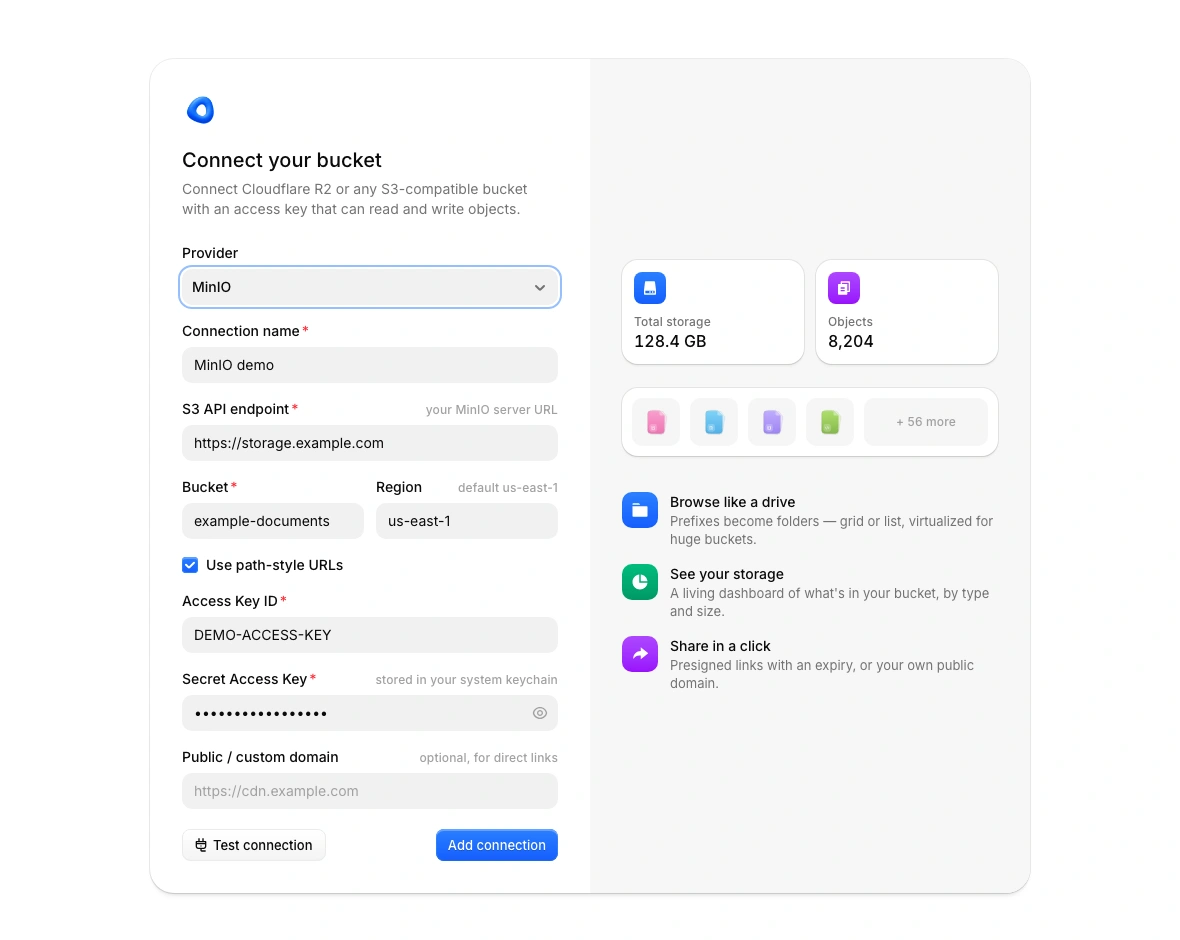
Test and save the connection
Test connection
Select Test connection. Blob0 lists the selected bucket at its root and may show 0 items for an empty bucket. A successful result confirms only that this listing request succeeded; it does not prove access to object contents or permission to upload, overwrite, or delete.
The MinIO preset starts with path-style enabled. If the listed objects do not appear, first confirm that the bucket name and key scope match; then compare the endpoint path style with the administrator’s service configuration.
Add connection
After the test succeeds, select Add connection to save the profile and connect. Blob0 stores access keys in the macOS Keychain; the profile keeps non-sensitive connection details.
Optional: verify an authorized transfer
Only if the bucket owner has authorized write testing, upload a tiny temporary file under a new test name, download it and compare its contents, then delete that exact test object. Check the bucket policy and retention rules first; never use an existing object as the test file.
Troubleshooting
- AccessDenied
- Confirm the key is active, scoped to this bucket, and allowed to list the bucket root. Ask the operator to check the applicable user and bucket policies.
- SignatureDoesNotMatch
- Check that Access Key ID and Secret Access Key belong together, that Region matches the server signing configuration, and that the Mac clock is accurate.
- NoSuchBucket or 404
- Copy the exact bucket name and confirm that the endpoint points to the same MinIO deployment. The Bucket field takes a name, not a URL or prefix.
- Endpoint or TLS error
- Confirm this Mac can reach the S3 API hostname and port, and that its TLS certificate is trusted. A Console address or Console port cannot substitute for the S3 API endpoint.
- Addressing or proxy error
- Keep path-style enabled unless the operator documents another URL style. Ask the operator to verify that the proxy routes S3 API paths to the API service.